Manage campaigns with custom entry requirements on X (Twitter) (manually register applicants)
SocialDog's "Manually Register Applicants" type campaigns allow you to manage campaigns by importing applicants as a CSV file.
Category: Campaigns > X (Twitter) Campaigns
Original URL:https://help.social-dog.net/ja/contests/x-twitter/manual
You can create a list of "applicants" as a CSV file and import it into SocialDog's campaign function. You can then conduct a lottery on SocialDog using the registered applicants, and send direct messages to all winners at once.
Here's how you can use it.
You can register any user as a campaign participant, making it suitable for all types of campaigns. Here are some examples:
- Hashtag Campaign : A campaign where users who post with a specified hashtag are considered applicants. We collect posts with the target hashtag using "Keyword Monitor" and download them as a CSV file. We then extract users on the spreadsheet so that only posts made within the application period remain, and register that list of users in a SocialDog campaign of the "Manually Register Applicants" type.
- Collaboration Campaign : This campaign targets users who follow both X (Twitter) account A and X (Twitter) account B and repost a designated post. Download the CSV files for the "followers" of each account A and B, and the CSV file for the "reactions to the post" of the designated post, and extract the users who meet the conditions on the spreadsheet. Compile this list of users into a CSV file and register it in SocialDog's "Manually Register Applicants" type campaign.
What you can do with a "manual applicant registration" type campaign
- Import applicant list as a CSV file
- You can import a list of applicants' X (Twitter) usernames in CSV format.
- Applicant Verification
- You can check this on the applicant list.
- Execution of the lottery and confirmation of winners
- You can specify the number of "winners" and "candidate winners" during the drawing. By drawing candidates at the same time, you can accommodate the possibility of having to fill vacancies among the winners.
- Manual addition and deletion of winners
- You can manually select winners instead of using an automated system, or exclude specific winners after the draw. You can also manually promote other potential winners to the final selection.
- Send a batch of direct messages (DMs).
- You can send the same text message to all winners at once.
- You can embed individual gift codes in your messages.
How to run a campaign where applicants are registered manually.
The campaign will be conducted according to the following procedure.
- Create a new campaign on SocialDog.
- Each campaign needs to be created anew for each run.
- We will conduct the campaign using any method you prefer.
- After the application period ends, create a CSV file of the applicant list in a spreadsheet (Excel, Google Sheets, etc.) and import it into SocialDog.
- Winners will be selected either by lottery from the applicant list or manually.
- We will send a direct message to all winners at once.
Create a campaign of the "Manual Applicant Registration" type.
- Click " Campaigns " from the menu.
- Click on "New Campaign".
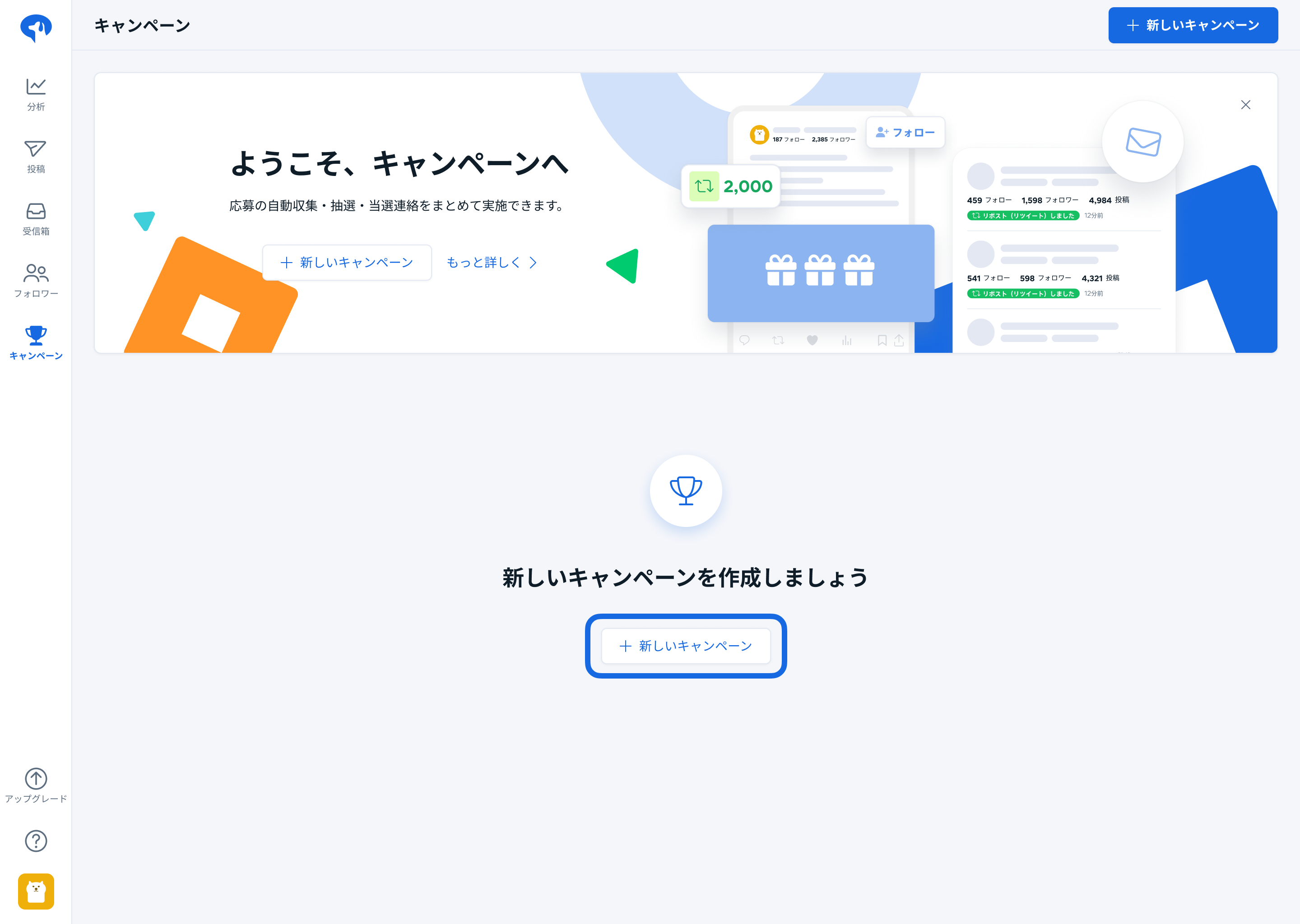
- Click "Register applicants manually".
- Please enter the following information.
- Campaign Name : This is an internal management name used within SocialDog. This name will not be displayed to campaign participants.
- Application period : We will collect users who repost within the set period as applicants. Users who were following us before the start of the application period and repost within that period will also be collected as applicants.
- SNS account for hosting the campaign : The SNS account you select here will be used as the sender when sending direct messages.
- Click "Create Campaign".
Change campaign settings (campaign name, SNS account to host the campaign)
- Click " Campaigns " from the menu.
- Click the "..." button at the end of the row for the campaign whose settings you want to change.
- Click "Edit Campaign" from the menu that appears.
- Set the items you want to change.
- Click "Save".
Import (register) campaign applicants.
- Click " Campaigns " from the menu.
- Click the "Applicants" button in the row of the campaign for which you want to import the applicant list. The applicant list will be displayed.
- Click "Import CSV file".
- Follow the on-screen instructions to create a CSV file for import in a spreadsheet program (such as Excel or Google Sheets), and then select the CSV file.
- The CSV files downloadable from SocialDog's "Inbox," "Followers," and "Post Reactions" sections can be used directly as applicant lists without any further processing. For more information on CSV downloads, please refer to " Downloading Inbox, Followers, and Post Reactions Data as a CSV File ."
- Click "Import CSV file".
If you import a CSV file when applicants have already been registered, the existing "Applicants" will be deleted. However, the contents of the "Winners" and "Winning Candidates" lists will not be updated.
Check the campaign applicants.
You can view a list of users who meet the application requirements. The applicant list can be viewed even while applications are being accepted.
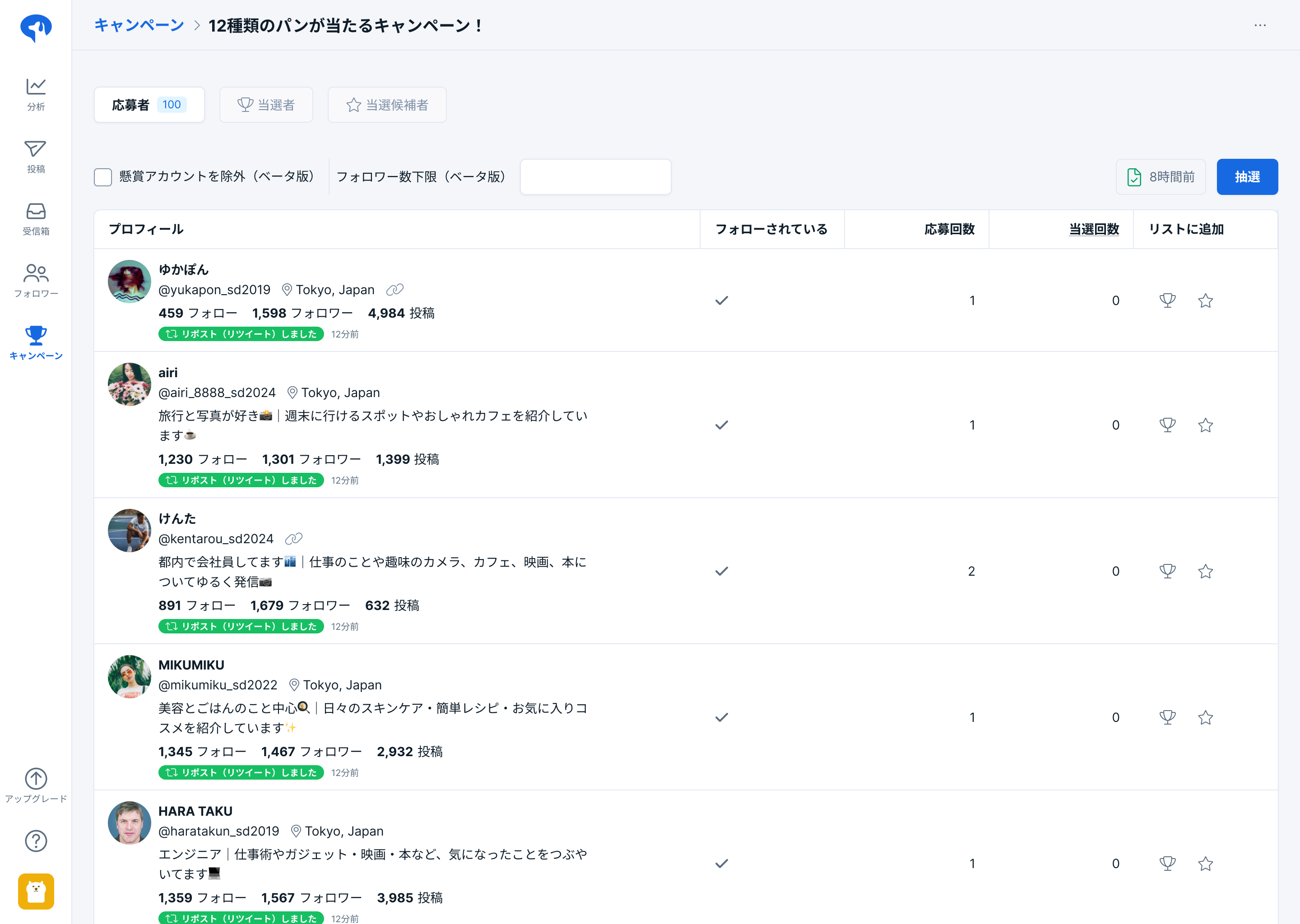
- Click " Campaigns " from the menu.
- Click the "Applicants" button in the row of the campaign for which you want to view the applicant list. The applicant list will be displayed.
Download the campaign applicant list as a CSV file.
- Click " Campaigns " from the menu.
- Click the "Applicants" button in the row of the campaign for which you want to view the applicant list.
- Click the "CSV Download" button in the upper right corner of the screen.
We will select campaign applicants by lottery.
After the application period ends, a lottery can be held to select the winners.
The draw will be conducted randomly from the users displayed on the applicant list. Users who have already been selected as winners or candidates for winners will not be included in the draw.
- Click " Campaigns " from the menu.
- Click the "Applicants" button in the row of the campaign for which you want to conduct the drawing.
- Click the "Draw" button.
- Enter the number of winners and the number of candidates for each category.
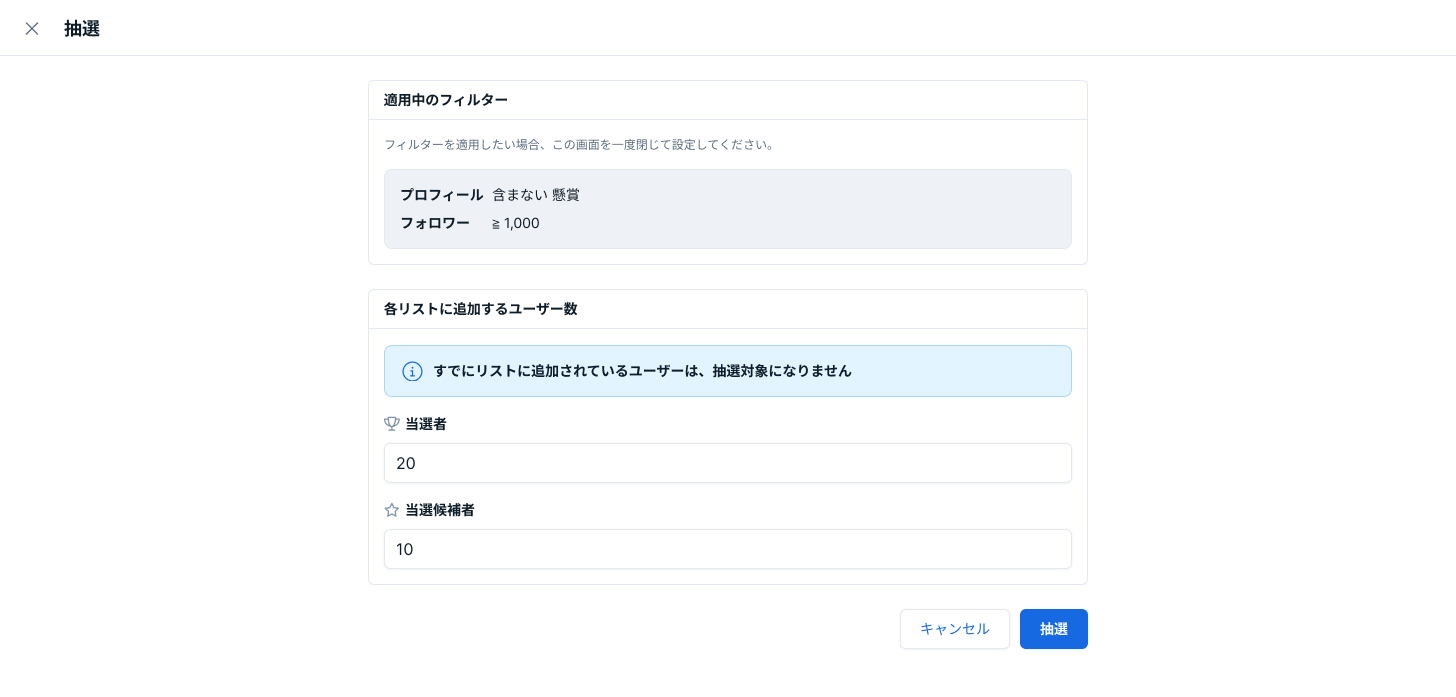
- Click "Draw".
- After the drawing is complete, you can check the results from the "Winners" and "Candidates" tabs at the top of the screen.
Winners can be manually registered, excluded, or replaced.
You can manually select winners from applicants without using the lottery function. You can also exclude winners and potential winners, or promote potential winners to the next highest number.
- Click " Campaigns " from the menu.
- Click the "Applicants" or "Winners" or "Winner Candidates" button in the row of the campaign for which you want to manually register, exclude, or select winners.
- Use the buttons in the "Add to List" column to perform the following actions:
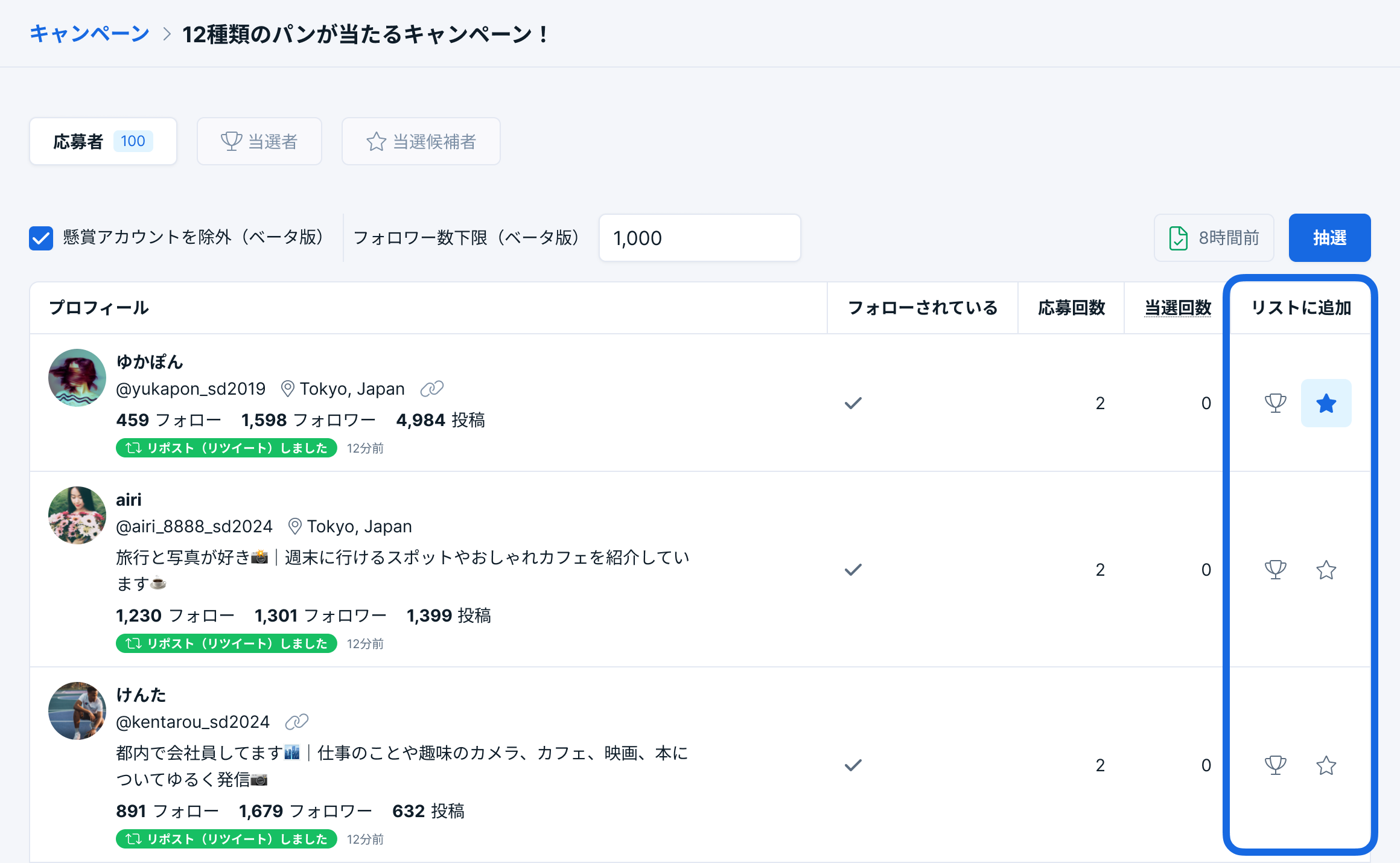
- To manually register winners or select alternate winners : Click the "Add to Winners" (Trophy) button.
- To remove winners or candidates : Click the "Remove from Winners" (trophy) or "Remove from Candidates" (star) button.
Send multiple direct messages (DMs) at once.
You can send a direct message (DM) to all users registered on the winner list at once.
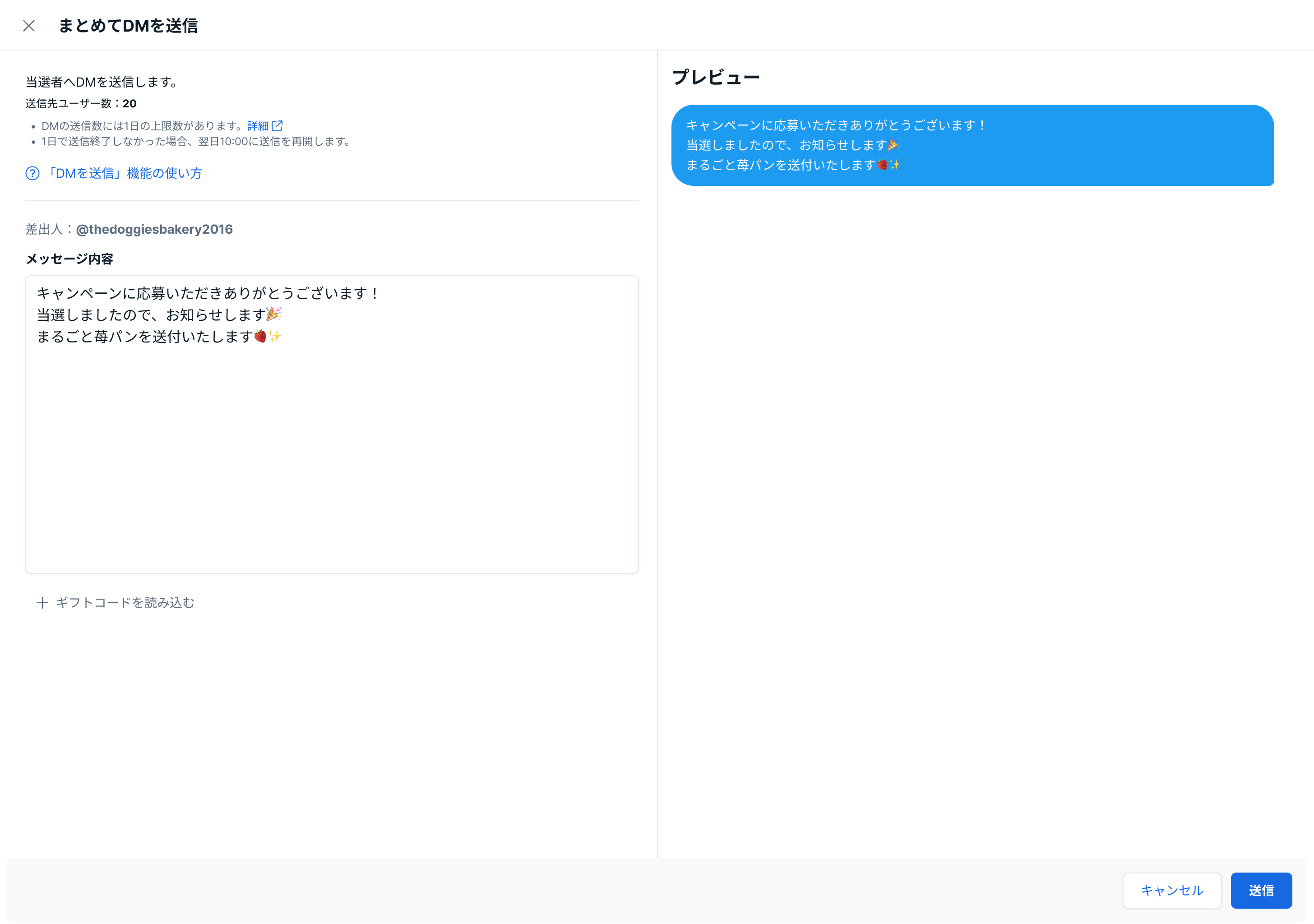
- Click " Campaigns " from the menu.
- Click the "Winners" button in the row of the campaign you want to send a direct message to.
- Click the "Send all DMs" button.
- Enter your message.
- Click the "Send" button. DMs will be sent sequentially. If the daily sending limit is reached, your message may be sent on the following day or later.
Once you send a direct message (DM), you cannot cancel it.
Timing of sending DMs
SocialDog automatically determines when to send DMs. Depending on the number of DMs to be sent and the DM sending status of other SocialDog users, it may not be possible to send all DMs on the same day you initiate the process.
Normally, you can send up to 100 messages per 24 hours, but in certain cases, such as when sending the same message to everyone, the number of DMs you can send may be less. If a message fails to send, it will be resent after 24 hours.
If sending a direct message fails
The following are possible reasons why a direct message might fail to send:
- The sender's account has been flagged as spam.
- The recipient's account is temporarily frozen.
- X (Twitter) is experiencing an outage.
If sending the message fails, please wait at least 30 minutes after the failure before sending the DM again.
Embed a gift code and send a direct message.
When sending a group DM to winners, you can embed individual gift codes in the message. {# The following code is enclosed in raw and endraw to prevent it from being recognized as HubSpot's special notation. ←This part is a comment and will not be published in the help. #}
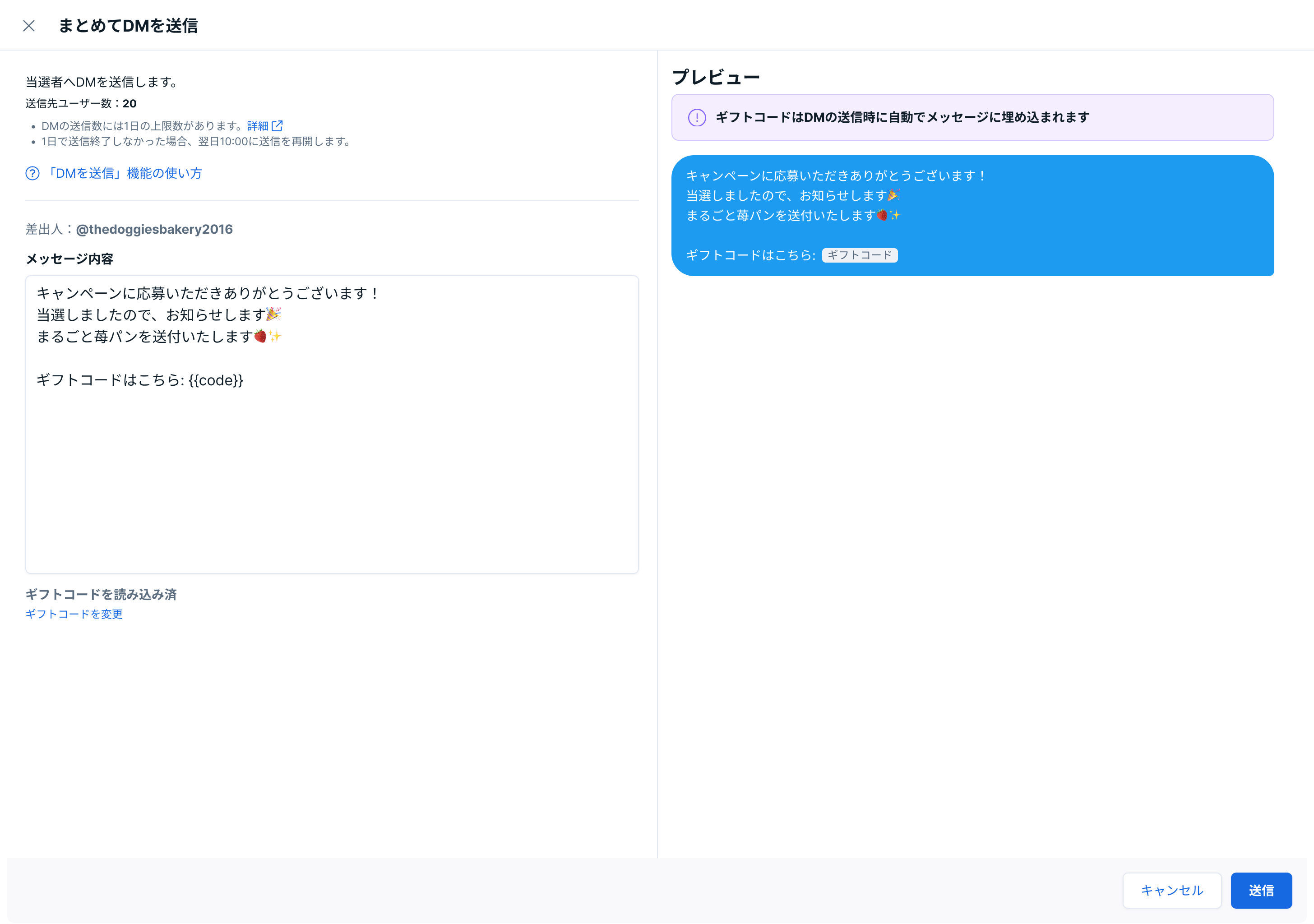
- Click " Campaigns " from the menu.
- Click the "Winners" button in the row of the campaign you want to send a direct message to.
- Click the "Send all DMs" button.
- Enter your message.
- Click the "Scan Gift Code" button.
- On the "Load Gift Code" screen, enter one gift code per line. You will need to enter the same number of gift codes as the number of recipients.
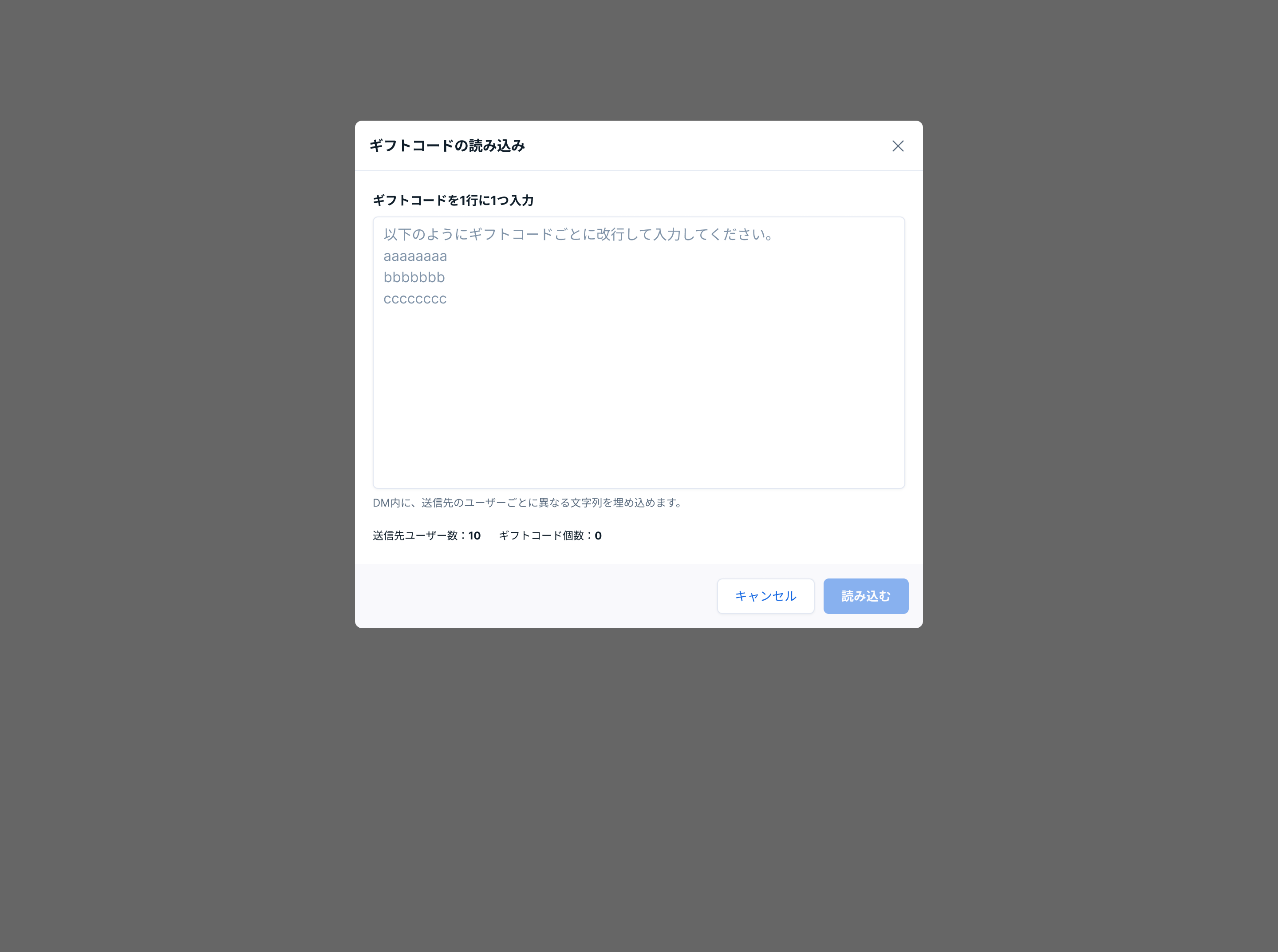
- Click "Load".
- In the message content, enter {% raw %}
{{code}}{% endraw %} wherever you want to embed the gift code.
- Click the "Send" button. DMs will be sent sequentially. If the daily sending limit is reached, your message may be sent on the following day or later.
You cannot manually assign gift codes to users. SocialDog automatically determines the gift code and user pairings.